Recording Permission
The "Restricted Data" error means that Read did not get permission from the meeting host to record the call. This is a requirement for Zoom specifically, as Zoom doesn't allow anyone to record a meeting without the host's approval.
- During the meeting, Read tried to join, but the host denied access.
A non-host user tried to bring Read to a meeting, and the host “allowed” admittance but then “denied” recording permission. The bot stayed in the meeting, but couldn't record.
- Host's settings prevented local record to computer files.
There are two “Recording” settings that must be enabled by the Zoom meeting host. These settings options are available at the account level, group level, and user level within Zoom. If disabled at the account or group level, it will override your user-level settings, so you may need someone with permission to view those pages to confirm that these settings are enabled there as well.
To confirm or update this at the user level:
- Log in to Zoom and navigate to https://zoom.us/profile/setting
- Select the "Recording" tab
- Confirm that these settings are all enabled/on:
- "Record to computer files"
- "External meeting participants”
- (Optional) "Auto approve their permission requests"
- If any setting is disabled/grayed out and you can't enable them, you will need to contact your Zoom account administrator to have it changed.
To confirm or update this at the account level:
- Log in to Zoom and navigate to https://zoom.us/account/setting
- Select the "Recording & Transcript" tab
- Confirm that these settings are all enabled/on:
- "Record to computer files"
- "External meeting participants”
- (Optional) "Auto approve their permission requests"
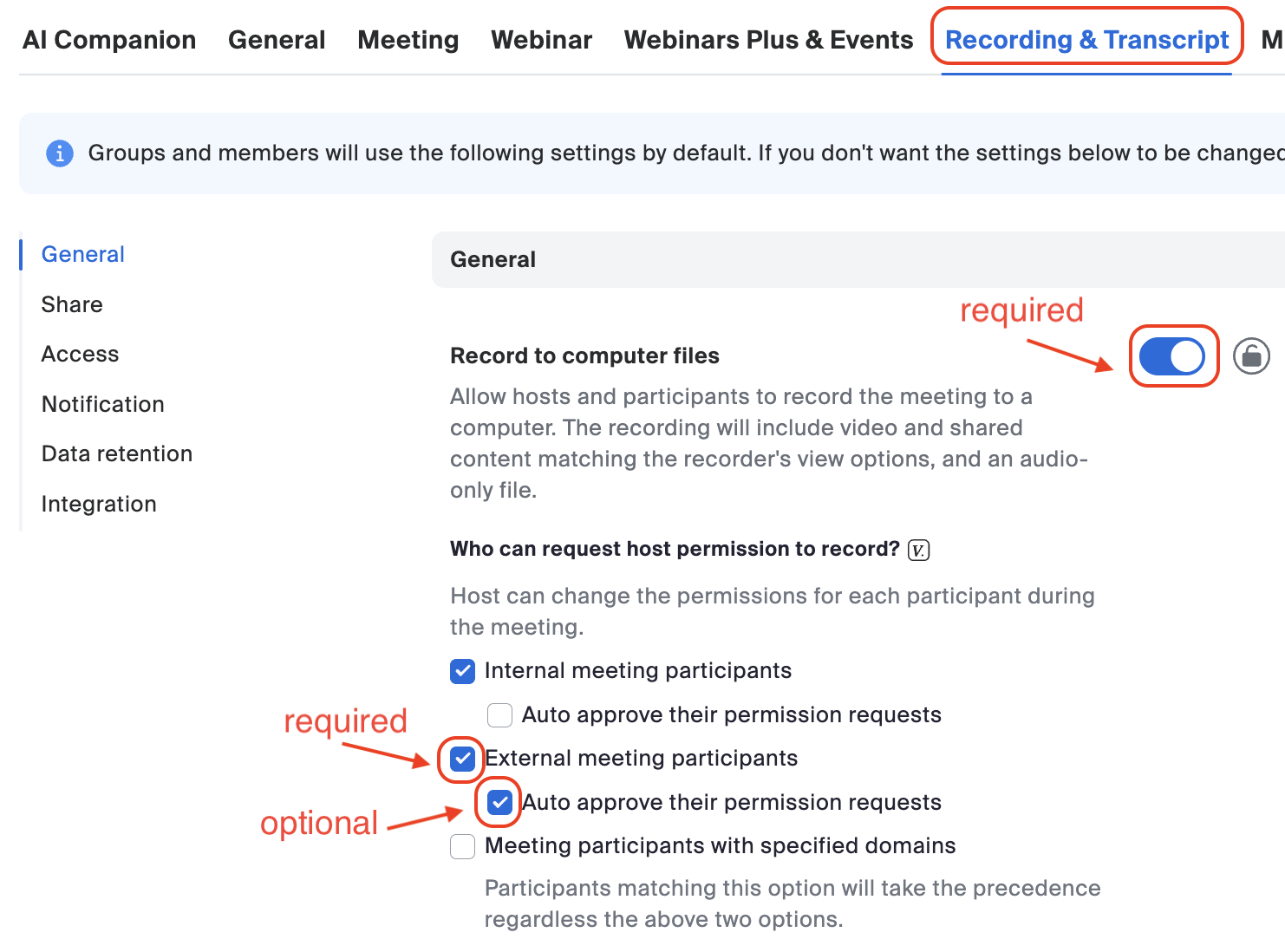
To confirm or update this at the group level:
- Log in to Zoom and navigate to https://zoom.us/account/group#/
- Select the group you would like to confirm or update settings for
- Select the "Recording & Transcript" tab
- Confirm that these settings are all enabled/on:
- "Record to computer files"
- "External meeting participants”
- (Optional) "Auto approve their permission requests"
Allowing unauthenticated users to join
“Only authenticated users can join” must be disabled in Zoom settings. If this is enabled, then Read won't be able to join your meeting at all. This setting exists in multiple places:
- As a meeting host, check is the user level settings
- Log in to Zoom and navigate to https://zoom.us/profile/setting
- Select the "Meeting" tab
- Scroll down to “Only authenticated meeting participants and webinar attendees can join meetings and webinars” and make sure it is turned off:
- The next place to check is in the PMI settings, which controls meetings created using a Personal Meeting ID:
- Open the Zoom app
- Click the down arrow next to “New Meeting” > “[your PMI]” > “PMI Settings”
- Make sure “Only authenticated users can join: Sign in to Zoom” is turned off:
- This setting can also be overridden on a per-meeting basis by the meeting creator, so you should make sure this is never checked when creating a meeting you want Read to record:
- The last place that this could be enabled is by your Zoom admin at the Zoom account/group level. Non-admin users aren't able to view or change this setting, but if you're still getting the "Only authenticated users can join" error after checking all 3 of the above places, you should ask your Zoom admin whether this setting is enabled at the Zoom account or group level. They can see these instructions from Zoom for how to view and change the settings.