Read is an AI-powered service that helps you with your meetings, emails, and chat messages. Here are some of the most common ways people use Read. For a full walkthrough of setting up your account, see How do I get started with Read?
Never take meeting notes by hand again
Add Read to your Zoom, Microsoft Teams, or Google Meet meetings, and it automatically generates a meeting report with a summary, action items, key questions, and a full transcript. You can also use Read's desktop and mobile apps to record in-person meetings, or upload your own audio and video recordings.
Want reports organized your way? Use report templates to structure reports for different types of conversations, like sales calls, discovery calls, or one-on-ones.
Follow along live during your meetings
Read's live meeting dashboard shows live notes and real-time metrics while your meeting is in progress. This helps you understand how your meeting is going and how engaged attendees are, even in larger meetings where you can't see everyone on screen. See Using Read's live meeting dashboard.

Continuously improve your meetings and presentations
Looking to take your sales pitches, product demos, or other presentations to the next level? Read measures aspects of meeting performance like sentiment and engagement, so you can see when your audience was engaged and when they lost interest. Use these insights to revise the parts of your presentation that aren't landing, and add more of what works.

Make sure everyone has a chance to contribute
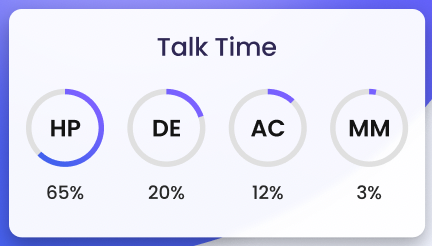
We've all been in meetings where one person unintentionally dominates the conversation. Use the Talk Time metric to make sure everyone has an opportunity to speak and to keep meetings from becoming too one-sided.
Get personalized speaker coaching
Read gives you private coaching recommendations after your meetings, covering clarity, inclusion, and impact, so you can become a better speaker over time. See How does Read's coaching work?
Go back and check the transcript
Every meeting report includes the full dialogue of the meeting broken out by speaker, so you can quickly find exactly what was said.

Find answers across your meetings and apps
Ask Read is Read's AI search and chat tool. It searches your meeting reports and the integrations you've connected, so you can get quick answers to your questions. See Using Ask Read to search your meetings and connected apps.
Get ready for upcoming meetings
Prepare brings your upcoming meetings together with pre-reads generated by Read AI in one view, so you can get up to speed in the minutes before a call. See Using Prepare to get ready for upcoming meetings.
Stay on top of your email and chat
Readouts summarize your emails and chat messages alongside your meetings, organized by the major topics and projects in your work. Readouts currently support Gmail and Outlook for email, and Slack and Microsoft Teams for messaging. See Readouts: Summaries for your Email and Messaging.
Let an AI assistant handle scheduling
Ada, Read AI's Executive Assistant, works over email. Add ada@read.ai to an email thread and Ada can coordinate meeting scheduling and answer questions about your past meetings. See Get started with Ada: Read AI's Executive Assistant.
Share knowledge with your team
If multiple people in your organization use Read, join a Workspace together to manage licenses centrally, set policies for your users, and easily share reports with other Workspace members. See What is a Workspace?
Bring Read into the tools you already use
Read integrates with many other apps and services, so you can send meeting notes to the platforms you already use. You can also set up your own integrations using webhooks, Zapier, Read's MCP server, or the API.