The Read Agentic Workflow Suite empowers you to automate and streamline your business processes with a collection of specialized AI agents designed to enhance productivity, collaboration, and decision-making. This page provides an overview of each available agent, outlining their unique capabilities and the value they bring to your workflow. You’ll also find step-by-step instructions on how to enable and configure these agents to best fit your organization’s needs, ensuring you get the most out of Read AI’s intelligent automation tools.
Monday Briefing
The Monday Briefing agent provides a personalized summary of last week’s highlights and upcoming
priorities, delivered as an email.
Prerequisites
- Must be on a paid plan or the Enterprise free trial
- Free users can get a more rudimentary "Weekly Recap" email
- Have the Ask Read setting enabled
- Have enough content from meetings in the previous week (at least one meeting but can vary)
- Currently only available in English, with support for additional languages coming soon
How to Enable
- Enable the Weekly Recaps setting under Account Settings > Notifications
- Ensure Email is turned on (not yet available for Slack and Teams)
End of Week
The End of Week agent provides a prioritized recap of the week’s most important topics, with reminders about your open action items and unanswered questions. These are delivered midday on Thursdays, and can be sent as an email, Teams, and/or Slack message.
Prerequisites
- Must be on a paid plan or the Enterprise free trial
- Have enough content from meetings in the current week to generate a For You page update
- (Optional) Connect Teams or Slack to receive recaps via those apps
- Currently available in English and Spanish
How to Enable
- Enable the Weekly Recaps setting under Account Settings > Notifications
- (Optional) Choose whether to receive via Email, Slack, and/or Teams (at least one must be on)
Post-Meeting Recap
The Post-Meeting Recap agent sends you a personalized summary with prioritized next steps after every meeting. If you have any recurring meetings, you can also enable "pre-reads" to get a reminder of what happened the last time you met shortly before your next meeting occurs. These summaries can be delivered via email, Slack, and/or Teams, and are available in all of Read AI's supported languages.
Prerequisites
- Available on all Read AI plans
- Free plan users are limited to 5 meeting reports per month
- (Optional) Connect Teams or Slack to receive recaps via those apps
- Have a meeting with Read
How to Enable
- Enable the Meeting Reports setting under Account Settings > Report Sharing
- (Optional) Choose whether to receive via Email, Slack, and/or Teams (at least one must be on)
- (Optional) Configure who you want to send recaps to using the drop down menus. The options are Only me, People with access, and for Slack/Teams you can also Send to a channel.
- (Optional) To get pre-reads, enable the Meeting Pre-Reads setting right below this
Topics
The Topics agent delivers you brief updates on the major topics from your meetings, email, and messaging app conversations, making it easy to catch up on what’s critical even on your busiest days. These summaries are cataloged into Readout topic reports, which can also be viewed from your Reports page. The Topics agent will send updates at most once per day, via email, Slack, and/or Teams, and are available in all of Read AI's supported languages.
Prerequisites
- Must be on a paid plan or the Enterprise free trial
- Free plan users get 14 days of free Topic Readouts after connecting an email or messaging app for the first time. Afterwards, users must be on a paid plan to continue receiving updates.
- (Optional) Connect Gmail, Outlook, Teams and/or Slack to include that content in addition to your meetings
- Have at least one meeting or recent content from your email or messaging app
- If you're having trouble, check out Why am I not getting Readouts?
How to Enable
- Enable the Topic Readouts setting under Account Settings > Notifications
- (Optional) Choose whether to receive via Email, Slack, and/or Teams (at least one must be on)
- (Optional) Configure Include Readout report updates - turn this off if you only want to be notified about new topics and not updates to existing topic
Recommendations
The Recommendations agent continuously optimizes your calendar by suggesting adjustments to your events, like changing the start time, duration, marking participants as optional, or changing your RSVP. Additionally, this agent will surface action items from your recent meetings that were assigned to you. These recommendations are enabled automatically, and can be viewed on the Recommendations page.
Prerequisites
How to Enable
Recommendations are enabled automatically, and can be found on the Recommendations page.
Scheduling
The Scheduling agent quickly finds the best time for new meetings by checking everyone’s availability. It will also optimize for times when participants are most engaged, most punctual, and to maximize uninterrupted periods of focus time on people's calendars. You can either use the Scheduling agent while scheduling a meeting, or you can flag a meeting as flexible and let the Scheduling agent find the best time automatically.
Prerequisites
- Connect a calendar - the Scheduling agent can only account for Read users who have connected their calendars
- For real-time recommendations when scheduling a meeting:
- Install the Read AI browser extension
- Currently only available on Google Calendar
- To enable flexible meetings, all invitees must be internal to your organization
How to Enable
To mark a meeting as flexible:
- Go to the Calendar page and turn on the Flexible setting
- Alternatively this can be enabled directly from Google Calendar:
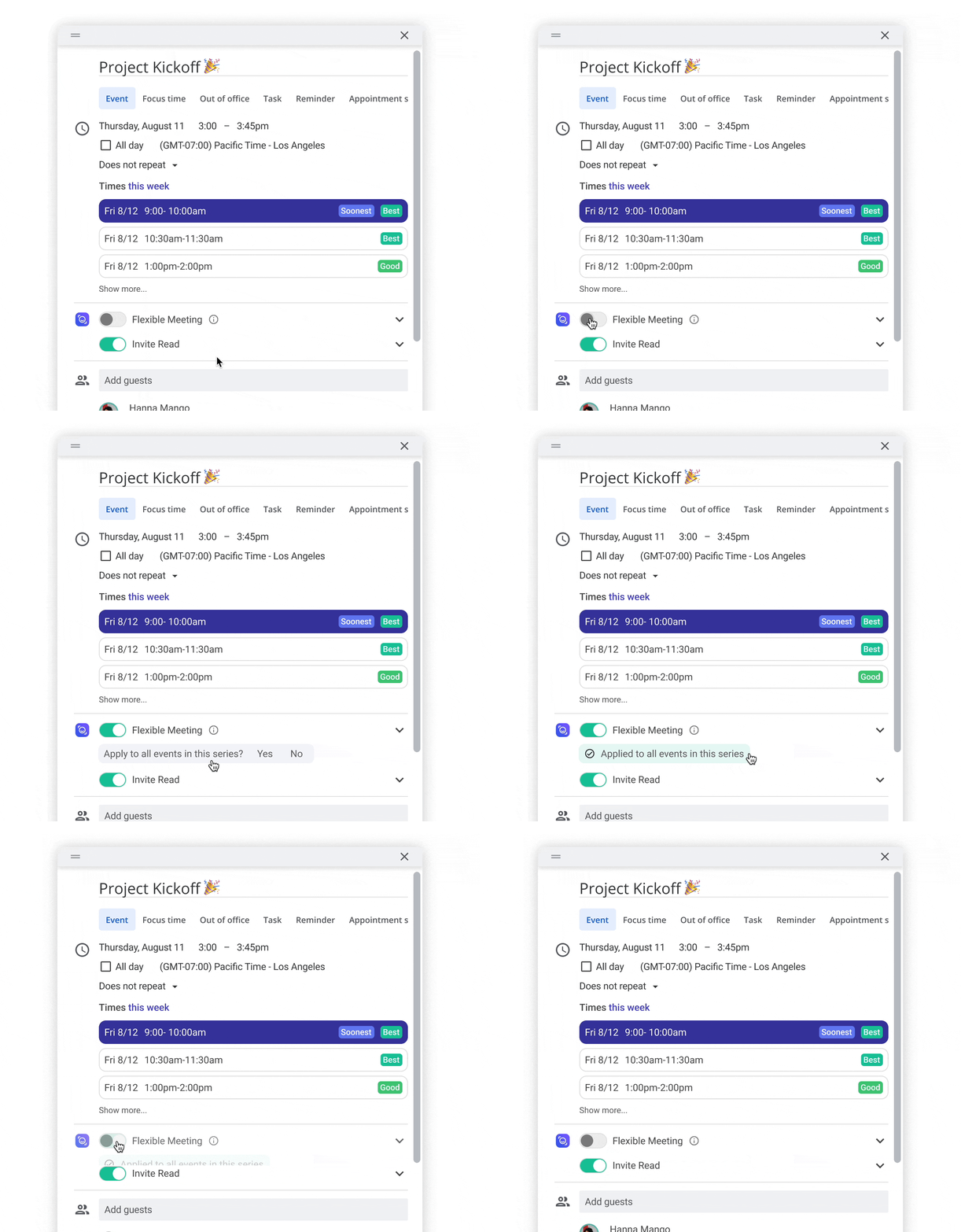
The Scheduling agent will automatically list suggested times when creating or rescheduling an event from Google Calendar.
Sales Funnel
The Sales Funnel agent recommends updates to your HubSpot or Salesforce instance with insights that get better over time, using our Sales AGI technology. In particular, it will suggest when a deal or opportunity is ready to progress to the next stage.
Prerequisites
- Must be on a paid plan or the Enterprise free trial
- Have either a Salesforce or HubSpot account connected
How to Enable
- Go to your Salesforce or HubSpot integration page
- Enable the Incorporate [HubSpot/Salesforce] Data into Read setting
CRM Recommendations will be surfaced at the top of your Reports page. Coming soon you can also receive these via a weekly email.
Free Agent
Free Agent is the foundational agent for Ask Read that continuously pulls in content from your connected integrations to create a comprehensive knowledge base. This enables you to not only search for information across all of your apps, but also to ask questions and chat in natural language with an LLM that knows everything about your work. You can even use it to generate complex outputs, from follow-up emails to detailed documents.
Prerequisites
- Connect applications on your Integrations page that have the Ask Read label
- Have the Ask Read setting enabled
How to Enable
- Go to your Integrations page
- For integrations that support additional features beyond Ask Read, you'll find a setting under that integration called Incorporate [App name] Data into Read
- For integrations where Ask Read is the only feature available, your Free Agent is automatically enabled for those when you connect the integration