Users who belong to a Read Workspace have several options for easily sharing their meeting reports with other users in their team(s) and/or Workspace. Read encourages users to share their meetings with their team or their entire Workspace whenever appropriate, to help
If you belong to one or more teams in a Read Workspace, you can share your meeting reports with your team(s) automatically through Read. There are two ways to configure this, but they both work differently, and one of them can only be enabled by a Workspace admin:
- You can share specific upcoming meetings using the Share button on your Calendar page
- An admin can enable the Team Report Access setting, which automatically shares all of the reports you own with your team
Share from the Calendar page
Main article: How can I manage sharing for specific upcoming meetings? (Calendar page)
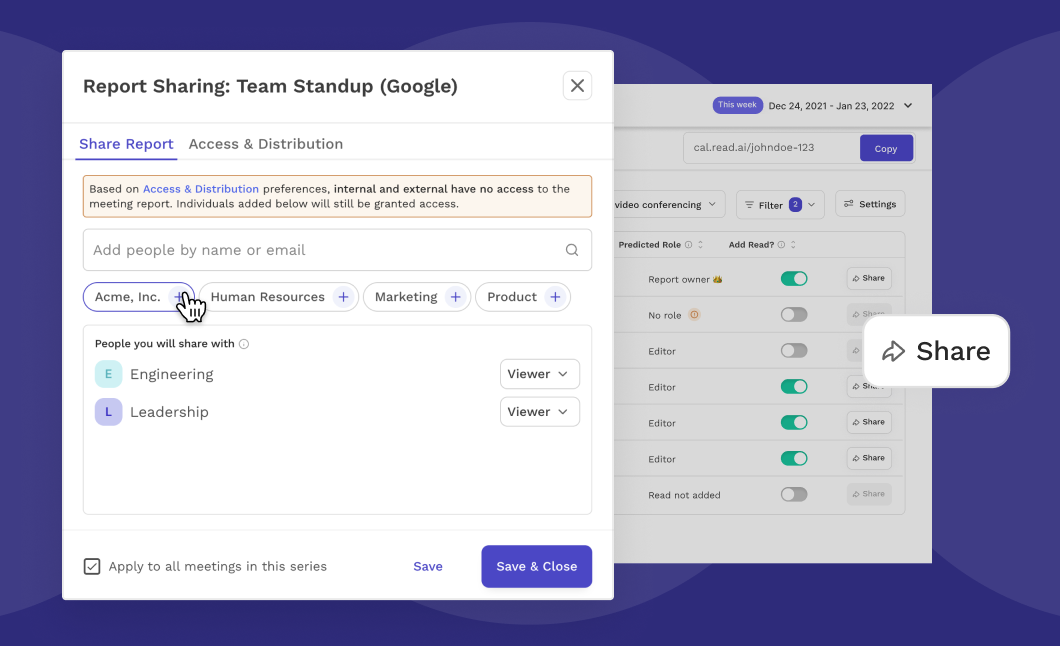
From your calendar page, you can choose how you want the reports for specific upcoming meetings to be shared. By default, these will use your account settings, however you can change them on a per-meeting basis in advance by using the Share button. You can only edit the sharing for meetings that you are adding Read to.
To share with a specific team or even your entire Workspace, you can click on the name from the list of suggestions, or you can type the name in the box above. This works essentially just like the Share button in your meeting reports, except that you're setting it in advance, so that the report will automatically be shared as soon as it is finished processing.
Coming soon: For recurring meetings, you'll be able to check the box to automatically sync these settings across all future instances of this meeting. Otherwise, your changes will only be applied to the specific instance that you're editing.