You can connect Read AI and Microsoft Teams to get your meeting notes and daily recaps in Teams, and to use your Teams messages with Readouts and Ask Read. This page gives a short overview of these features, with links to more detailed articles.
The Teams integration is available to all Read users with a work or school Microsoft account, including those on the Free plan. Personal Microsoft accounts (for example @outlook.com or @hotmail.com) can be connected, but some features are limited.
For full setup steps, see Connecting Read AI to Microsoft Teams.
How to connect
- Go to your Integrations page and find Microsoft Teams in the Messaging section.
- Click Connect.
- Sign in with your Microsoft account and grant the permissions Read needs.
- If you see that admin approval is required, Read gives you a link you can send to your admin to approve access to your Teams channels. Your admin doesn't need a Read account.

Get summaries in Teams
Once Teams is connected, Read can send you the following in Teams:
- Meeting recaps: Meeting summaries after your meetings end.
- Pre-Reads: A recap of the last meeting before your next recurring meeting.
- Daily Summaries: Recaps of your Teams chats and channels.
You choose who receives meeting recaps, and whether they're sent by email, Slack, and/or Teams, in Account Settings > Report Sharing under Report Distribution > Meeting Reports. Pre-Reads have the same options under Report Distribution > Meeting Pre-Reads (only for recurring calendar events), and you can also turn them on in the Microsoft Teams integration settings under Automatically Share Notes to Teams. See How do I control meeting report sharing and distribution?
Daily Summaries
Daily Summaries are short recaps of the most important conversations in your Teams chats and channels, including major topics, decisions, action items, and announcements.
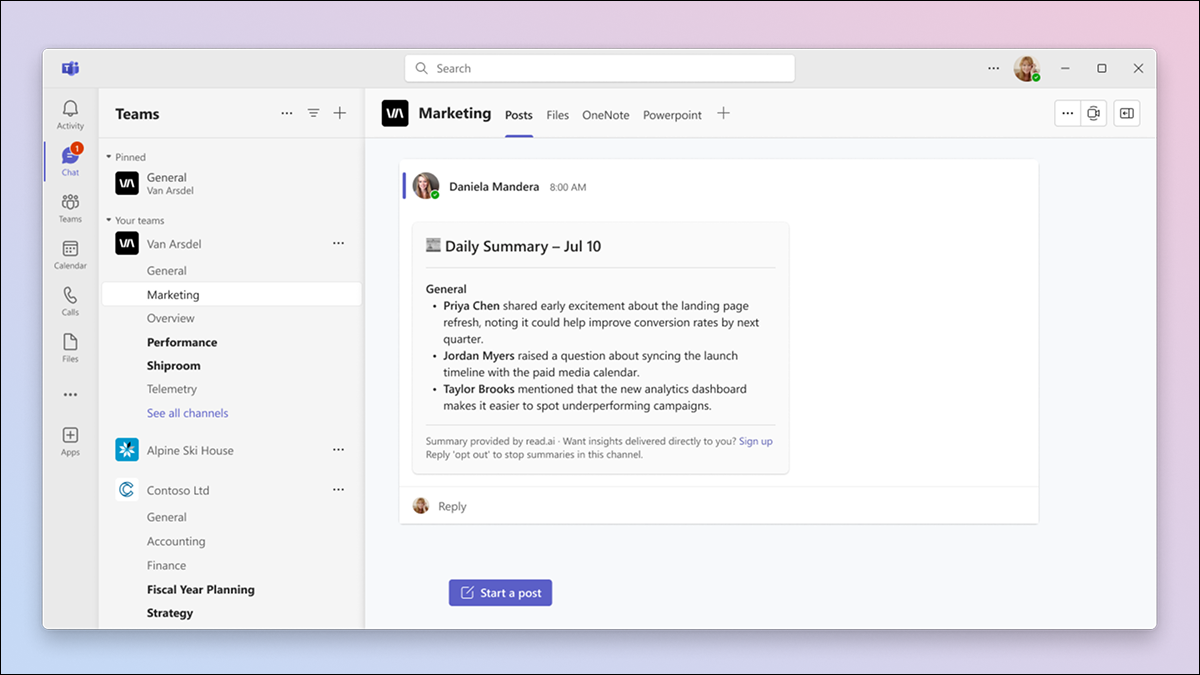
- Where you get them: Daily Summaries always appear on your Reports page once Teams is connected (you can filter them out with the Type filter, but this can't be turned off). You can also get them as a direct message from Read AI in Teams (Personal Summaries), and/or posted in selected channels (Channel Summaries).
- When: Around 8:00 AM in your account's time zone, on weekdays. The Monday summary covers messages since Friday's summary.
- Opting out: Anyone in a channel, even without a Read AI account, can opt out of channel summaries using the link in each summary message.
To choose which channels get a daily summary, click Manage channels.

In the Select Teams Channels window, choose the channels you want Read to summarize daily, then click Save.
Channel summary settings are shared by all Read AI users connected to the same Teams instance. For more details, see Teams Daily Summaries for chat and channels.
Use your Teams messages in Read
When Teams is connected and the Incorporate Teams Data into Read setting is on, Read can use your Teams chat and channel messages to power:
- Topic Readouts: Summaries of the key topics being discussed in your email and messaging. Readouts are only visible to you by default and are never automatically shared. On the Free plan, you get Readouts for 14 days. See Readouts: Summaries for your Email and Messaging.
- Ask Read: Search and ask questions about your meetings, Teams messages, and other connected sources. You can also use Ask Read directly in Teams. See Using Ask Read in Teams.
