The Read Agentic Workflow Suite helps you automate and streamline your work with a collection of specialized AI agents. This page gives an overview of each available agent, what it does, and how to turn it on and configure it.
Looking for help getting ready for upcoming meetings? See Using Prepare to get ready for upcoming meetings and Using Ada to prepare for meetings.
Monday Briefing
The Monday Briefing agent gives you a personalized summary of last week's highlights and upcoming priorities, delivered as an email.
Prerequisites
- You must be on a paid plan or the Enterprise free trial (see What are the different paid plans that Read offers?)
- Free users can get a more basic "Weekly Recap" email
- Have the Ask Read setting turned on in Account Settings > Ask Read
- Have enough content from meetings in the previous week (at least one meeting, but this can vary)
- Currently only available in English
How to Enable
The Monday Briefing and End of Week agents are controlled by the same setting, Weekly Recaps. When it's on, you get both: a Monday summary of last week's meetings and a Thursday wrap-up of your remaining action items.
- Go to Account Settings > Notifications.
- Turn on the Weekly Recaps setting.
- Make sure Email is turned on. The Monday Briefing is not yet available in Slack or Teams.
End of Week
The End of Week agent gives you a prioritized recap of the week's most important topics, with reminders about your open action items and unanswered questions. It's delivered midday on Thursdays, and can be sent as an email, Teams message, and/or Slack message.
Prerequisites
- You must be on a paid plan or the Enterprise free trial (see What are the different paid plans that Read offers?)
- Have enough content from meetings in the current week to generate a For You page update (see Why is there "Not enough data" to show my For You page?)
- (Optional) Connect Teams or Slack to receive recaps in those apps
- Currently available in English and Spanish
How to Enable
- Go to Account Settings > Notifications.
- Turn on the Weekly Recaps setting (the same setting as the Monday Briefing).
- (Optional) Choose whether to receive it via Email, Slack, and/or Teams. At least one must be on.
Post-Meeting Recap
The Post-Meeting Recap agent sends you a personalized summary with prioritized next steps after every meeting. If you have recurring meetings, you can also turn on Meeting Pre-Reads, which send you a recap of the last meeting in the series shortly before the next one. These summaries can be delivered via email, Slack, and/or Teams, and are available in all of Read AI's supported languages (see What languages does Read support?).
Prerequisites
- Available on all Read AI plans
- Free plan users are limited to 5 meeting reports per month
- (Optional) Connect Teams or Slack to receive recaps in those apps
- Have a meeting with Read (see How do I add Read to a meeting?)
How to Enable
- Go to Account Settings > Report Sharing.
- Turn on the Meeting Reports setting.
- (Optional) Choose whether to receive recaps via Email, Slack, and/or Teams. At least one must be on.
- (Optional) Use the drop-down menus to choose who receives recaps. The options are Only me and People with access. For Slack and Teams, you can also choose Send to a channel.
- (Optional) For recurring meetings, turn on Meeting Pre-Reads in the same Report Distribution section and choose Email, Slack, and/or Teams and who to Send to. Pre-Reads can only be sent for recurring calendar events. If you're in a Workspace and don't see this option, your Workspace admin's settings may hide it.
Note: Meeting Pre-Reads are different from the pre-reads on the Prepare page. Prepare pre-reads are personal briefs that draw on all your connected sources, while Meeting Pre-Reads only recap the previous meeting in a recurring series. Because both can arrive about an hour before a meeting, you may get two emails. See Using Prepare to get ready for upcoming meetings.
Topics
The Topics agent sends you brief updates on the major topics from your meetings, email, and messaging app conversations, so you can catch up on what's important even on your busiest days. These summaries are saved as Readout topic reports (see Readouts: Summaries for your Email and Messaging), which you can also view from your Reports page (filter by Type > Topic Readouts). The Topics agent sends updates at most once per day, via email, Slack, and/or Teams, and is available in all of Read AI's supported languages.
Prerequisites
- You must be on a paid plan or the Enterprise free trial (see What are the different paid plans that Read offers?)
- Free plan users get 14 days of Topic Readouts after connecting an email or messaging app for the first time. After that, you need a paid plan to keep receiving updates.
- (Optional) Connect Gmail, Outlook, Teams, and/or Slack to include that content in addition to your meetings
- Have at least one meeting or recent content from your email or messaging app
- If you're having trouble, see Why am I not getting Readouts (email and messaging reports)?
How to Enable
- Go to Account Settings > Notifications.
- Turn on the Topic Readouts setting.
- (Optional) Choose whether to receive updates via Email, Slack, and/or Teams. At least one must be on.
- (Optional) Configure Include Readout report updates. Turn this off if you only want to be notified about new topics, not updates to existing topics.
Recommendations
The Recommendations agent helps optimize your calendar by suggesting changes to your events, like changing the start time or duration, marking participants as optional, or changing your RSVP. It also surfaces action items assigned to you from your recent meetings. Recommendations are turned on automatically and can be viewed on the Recommendations page.
Prerequisites
- Connect a calendar (see How do I connect my calendar to Read?)
- Have a meeting with Read (see How do I add Read to a meeting?)
How to Enable
Recommendations are turned on automatically and can be found on the Recommendations page. New recommendations are on the New tab. For each one (for example, Action item for you), click Acknowledge or Ignore. Items you've reviewed are on the Reviewed tab. If you don't have any recommendations yet, Read shows Sample Recommendations (for example, Decline Invite with Accept or Ignore) to show you what to expect. Interacting with them doesn't affect any calendar events.
Scheduling
The Scheduling agent quickly finds the best time for new meetings by checking everyone's availability. It also looks for times when participants are most engaged and most punctual, and tries to maximize uninterrupted focus time on people's calendars. You can use the Scheduling agent while scheduling a meeting, or you can mark a meeting as flexible and let the Scheduling agent find the best time automatically (see What are "Flexible" Meetings?).
Prerequisites
- Connect a calendar (see How do I connect my calendar to Read?). The Scheduling agent can only account for Read users who have connected their calendars.
- For real-time recommendations when scheduling a meeting:
- Install the Read AI browser extension (see Using Read's browser extension)
- Currently only available on Google Calendar
- To mark a meeting as flexible, all invitees must be internal to your organization
How to Enable
To mark a meeting as flexible:
- Go to the Upcoming tab of the Calendar page and turn on the Flexible? toggle. Only the meeting host can change it:
- Alternatively, you can turn it on directly from Google Calendar:
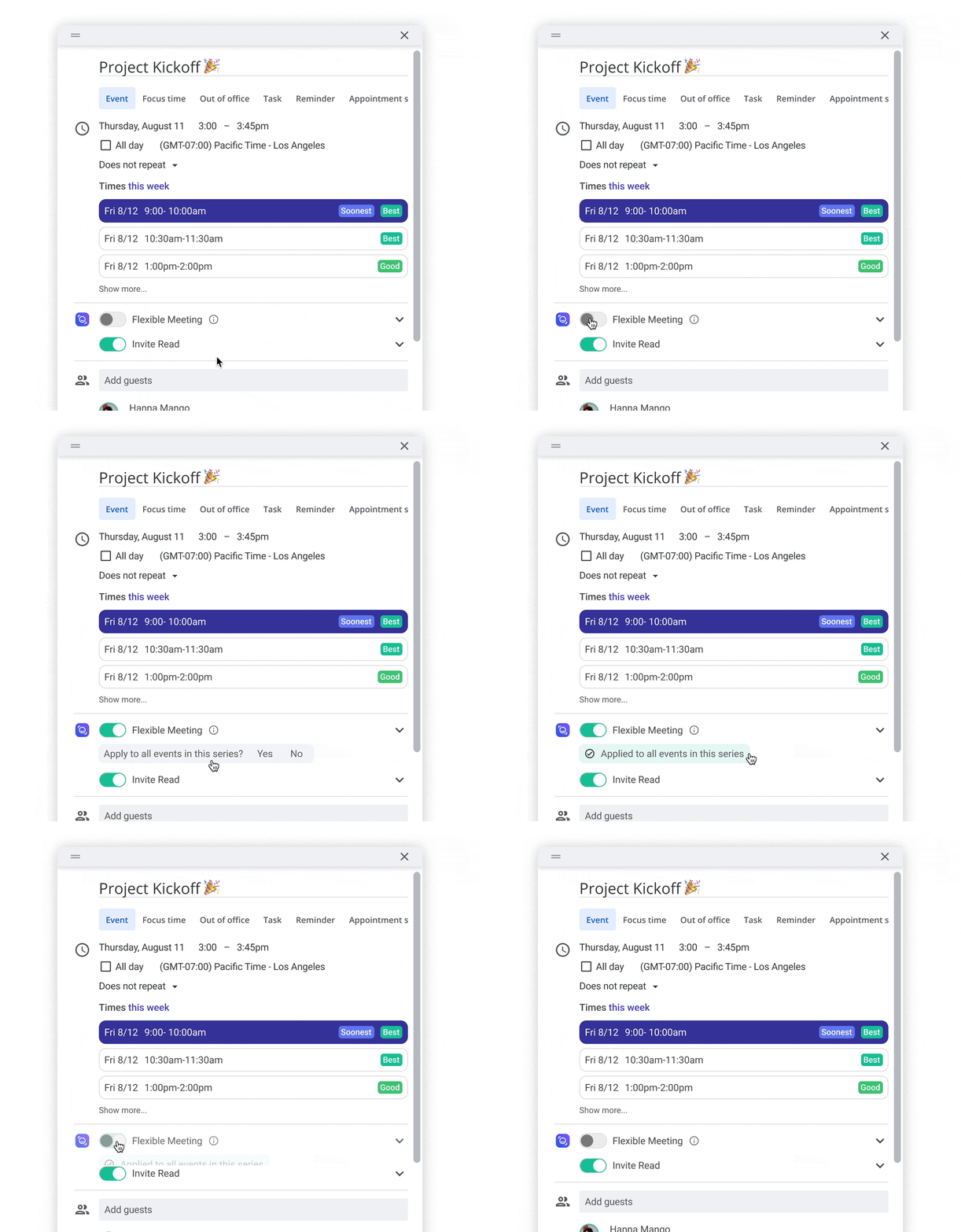
The Scheduling agent automatically lists suggested times when you create or reschedule an event from Google Calendar.
Sales Funnel
The Sales Funnel agent recommends updates to your HubSpot or Salesforce instance, using AI that analyzes your meetings, emails, and deal activity. In particular, it suggests when a deal or opportunity is ready to move to the next stage.
Prerequisites
- You must be on a paid plan or the Enterprise free trial (see What are the different paid plans that Read offers?)
- Have either a Salesforce or HubSpot account connected
How to Enable
- Go to your Salesforce or HubSpot integration page.
- Turn on the Incorporate [HubSpot/Salesforce] Data into Read setting.
CRM Recommendations appear at the top of your Reports page. For HubSpot, see Using Read's CRM Recommendations for HubSpot to learn how to review and apply them.
Free Agent
Free Agent is the foundational agent for Ask Read (see Using Ask Read to search your meetings and connected apps). It continuously pulls in content from your connected integrations to build a knowledge base about your work. This lets you search for information across all of your apps, ask questions, and chat in natural language with an AI that knows about your work. You can even use it to generate outputs, from follow-up emails to detailed documents.
Prerequisites
- Connect applications on your Integrations page that have the Ask Read label
- Have the Ask Read setting turned on in Account Settings > Ask Read
How to Enable
- Go to your Integrations page.
- For integrations that support features beyond Ask Read, turn on the setting under that integration called Incorporate [App name] Data into Read:
For integrations where Ask Read is the only feature available, Free Agent is turned on automatically when you connect the integration.